gImageReader Download
The Ultimate Free GUI for Tesseract OCR Engine
Extract text from images, PDFs, and scanned documents instantly. gImageReader is the most popular open-source interface for Tesseract, offering 99% accuracy, multi-language support, and batch processing.
✅ Latest Version: v3.4.3 (Updated Aug 2025) | ✅ License: GNU GPL v3.0
Available for: Windows 10/11 (Qt6/Gtk), Linux (Fedora/Debian/Arch)
What Exactly is gImageReader?
gImageReader is the definitive open-source graphical user interface (GUI) for the Tesseract OCR engine. While Tesseract is widely recognized by developers and researchers as one of the most accurate optical character recognition systems in the world (originally developed by HP and now maintained by Google), it lacks a native visual interface. This means users typically have to run complex commands in a terminal to use it.
gImageReader solves this problem by wrapping the powerful Tesseract engine in a user-friendly, feature-rich desktop application. It acts as a bridge: you get the industrial-strength recognition accuracy of Tesseract, but with the convenience of a modern point-and-click interface. Whether you need to convert a scanned PDF contract into an editable Word document, extract text from a screenshot, or digitize an entire book, gImageReader makes the process accessible to everyone.
Powered by Tesseract 5 & LSTM
Under the hood, gImageReader utilizes the latest Tesseract 5 engine, which employs Long Short-Term Memory (LSTM) neural networks. This AI-driven technology significantly improves character recognition accuracy, especially for documents with poor lighting, skewed text, or non-standard fonts. Unlike older OCR tools that relied on pattern matching, gImageReader “reads” text much like a human does.
The software is fully cross-platform, offering native support for both Windows (via Qt or Gtk frameworks) and Linux distributions like Fedora, Ubuntu, and Arch. It supports importing from disks, scanning directly from hardware devices (SANE/Twain support), and pasting from the system clipboard. Furthermore, it is released under the GPL v3.0 license, guaranteeing that it will remain free and open-source forever, free from adware or watermarks.
Why Choose gImageReader?
The simple, powerful, and free front-end for the Tesseract OCR engine. Say goodbye to complex command lines.
📄 Import from Anywhere
Easily import documents from your local disk, scanning devices (scanners), clipboard, or even take screenshots directly. Supports standard image formats (JPG, PNG) and comprehensive PDF handling.
⚡ Automated & Manual Zones
Let the software automatically detect page layout and recognition areas, or manually select regions for precise control. Perfect for extracting specific paragraphs or tables from complex documents.
📚 Advanced hOCR Editor
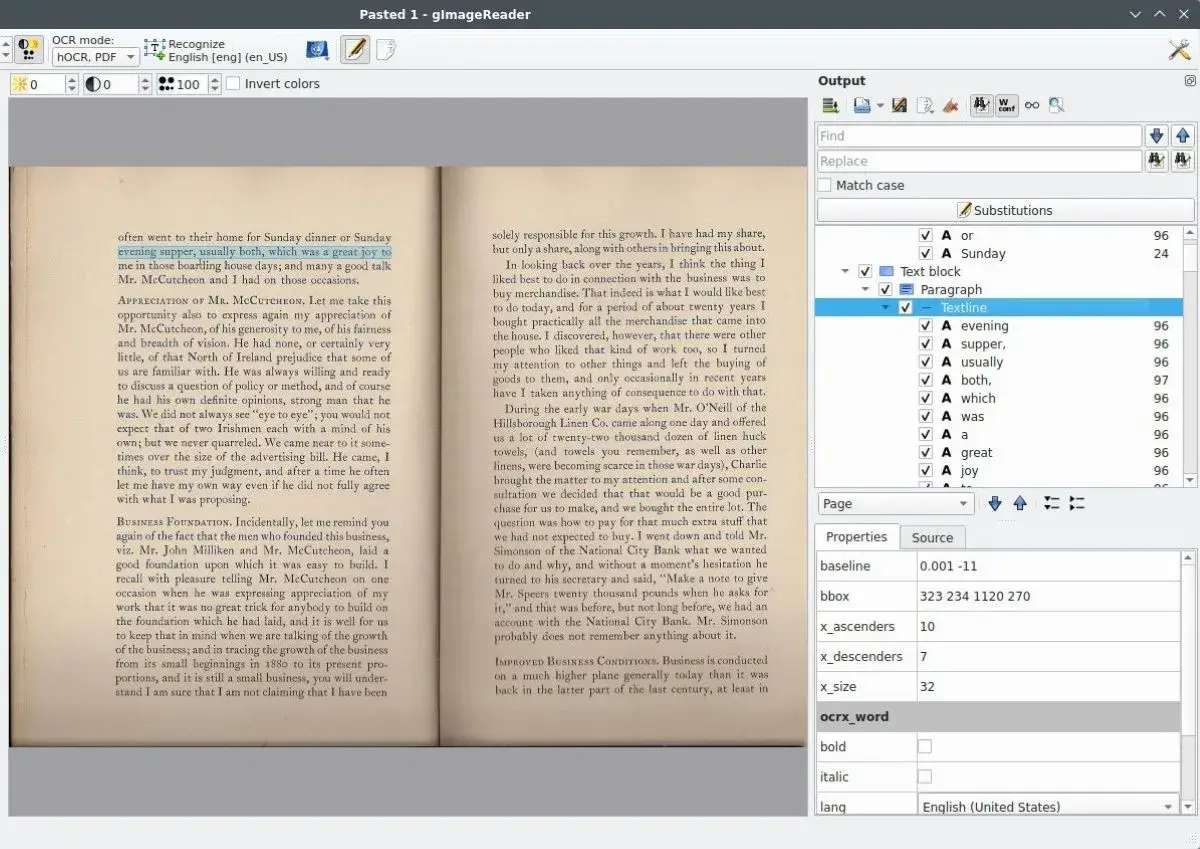
Unlike basic tools, gImageReader supports hOCR output. You can view the recognized text directly next to the original image, edit the layout tree, and correct errors with an integrated spellchecker.
🔄 Batch Processing
Need to convert a 500-page book? No problem. Process multiple images and documents in one go. gImageReader queues your files and uses the Tesseract engine to process them sequentially.
🌍 Multi-Language Support
Based on Tesseract, it supports over 100 languages including English, Chinese, Spanish, and German.
Missing a language? Read our guide on How to Install Language Packs.
💾 Export to PDF
Export your work not just as plain text, but as a Searchable PDF. The software merges the original image with the invisible text layer, making your scanned documents fully searchable.
How to Use gImageReader in 3 Steps
Convert any image or PDF to editable text in seconds. The interface is intuitive, but here is a quick workflow to get you started.
Import Source
Click the folder icon to open a local file (PDF, JPG, PNG). Alternatively, use the scanner button to acquire images directly from a connected device, or simply paste an image from your clipboard (Ctrl+V).
Select & Recognize
Draw a selection box around the text you want to extract. Select the correct language from the dropdown menu, then click the “Recognize Selection” button. For whole pages, click “Recognize All”.
Edit & Export
The extracted text will appear in the right-hand editor. Use the built-in spellchecker to fix any OCR errors. Finally, save your work as a plain Text file, hOCR file, or export it as a Searchable PDF.
Guides & Troubleshooting
Can’t process Chinese or German documents? Learn how to download and install Tesseract 5 traineddata files manually.
Windows 10/11 users should use Qt6, but legacy users beware. We explain the differences and performance impacts.
Is free OCR good enough for business? We compare accuracy, table retention, and formatting features.
System Requirements
To ensure optimal OCR accuracy and performance with Tesseract 5, please verify that your system meets the following specifications. gImageReader is lightweight, but the underlying OCR engine requires sufficient resources.
Software & OS
Hardware Specifications
Are you using Windows 7 or 8?
The latest version (v3.4.3) may not launch on your system due to Qt6 incompatibility. Please download gImageReader v3.4.0 or older, which is built on the Qt5 framework. Check our download archive for legacy versions.
Frequently Asked Questions
Everything you need to know about installation, languages, and troubleshooting.
Is gImageReader completely free to use?
Yes, absolutely. gImageReader is open-source software licensed under the GNU General Public License v3.0 (GPL). It is free for personal, educational, and commercial use. There are no hidden fees, no subscriptions, and no page limits on OCR processing.
How do I install more languages (Chinese, Japanese, etc.)?
By default, the Windows installer may only include English. To add languages:
- Download the
.traineddatafiles for your language from the Tesseract GitHub repository. - Open gImageReader and go to the settings.
- Locate the “Tessdata Prefix” folder path.
- Copy the downloaded files into that folder and restart the application.
Why is the OCR output inaccurate or full of garbage characters?
OCR accuracy depends heavily on the source image quality. Here are common fixes:
- DPI is too low: Ensure scanned images are at least 300 DPI.
- Wrong Language: Make sure you have selected the correct language in the toolbar corresponding to the document’s text.
- Image Pre-processing: Use the “Image Controls” in gImageReader to increase contrast or binarize the image before recognition.
Should I download the Qt5 or Qt6 version?
For most users on Windows 10 and Windows 11, we recommend the Qt6 version (v3.4.3+) as it offers better High-DPI scaling and performance. However, if you are on an older system like Windows 7 or 8, the Qt6 version may fail to launch. In that case, use the legacy Qt5 version (v3.4.0 or older).
Is gImageReader safe? Does it contain viruses?
Yes, it is safe. gImageReader is a reputable open-source project hosted on GitHub since 2009. The source code is publicly available for audit. Our download links point directly to the original GitHub releases, ensuring you get the unmodified, virus-free files.
Can I convert a PDF to a Searchable PDF?
Yes. gImageReader has an “Export to PDF” feature. It takes the recognized text and places it as an invisible layer over the original image. This allows you to search for keywords (Ctrl+F) inside the PDF viewer while keeping the original document’s visual appearance.
How does it compare to ABBYY FineReader?
gImageReader uses the Tesseract engine, which is the best free OCR engine available. However, it may struggle with complex layouts (like magazines with multiple columns) or handwritten text. Commercial software like ABBYY FineReader generally offers superior layout retention and table extraction, but at a premium price.
Is there a version for macOS?
Officially, there is no pre-built .dmg installer for macOS provided by the developer. Mac users can try installing it via MacPorts or Homebrew, but it requires some technical knowledge of the terminal. We recommend looking for Mac-native Tesseract alternatives if you are not comfortable with command-line tools.
Ready to Digitize Your Documents?
Join thousands of users who trust gImageReader for fast, accurate, and free Optical Character Recognition.
Download gImageReader NowLatest Version: v3.4.3 | Windows & Linux